This guide explains how to configure Leave Without Pay (LWP) using the Other Leave option in the Leave Policy.
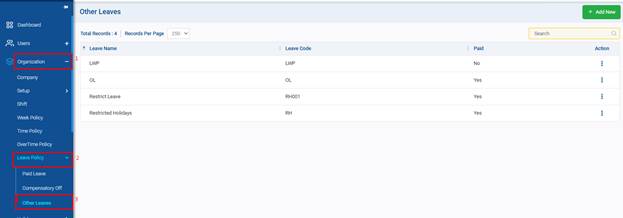
Step 1: From Control Center page go to Organization -> Leave Policy, then click on Other Leaves.
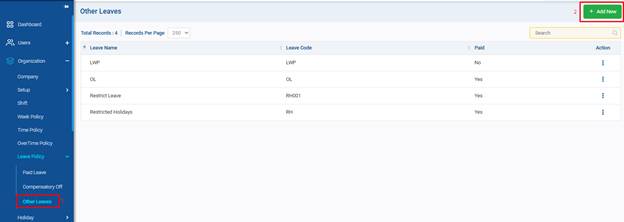
Step 2: After clicking Other Leaves, click the Add New button to open the leave creation screen.
Step 3: On the Add New Other Leave screen, fill in the following fields:
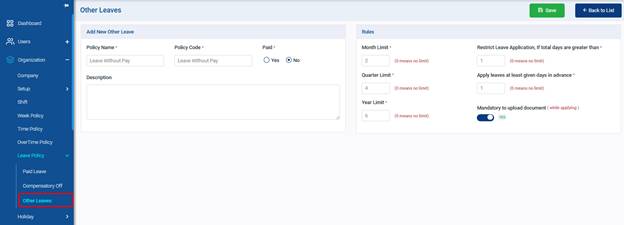
Field Description: -
Policy Name *: - Enter the leave name (e.g., Leave Without Pay or LWP)
Policy Code *: - Enter a short code for the leave (e.g., LWP)
Paid
1.Yes: - Leave is paid
2.No: - Leave is unpaid
Rules for Configuring the leave type-
- Month Limit *: Maximum LWP days allowed per month.
- Quarter Limit *: Maximum LWP days allowed per quarter.
- Year Limit *: Maximum LWP days allowed per year.
- Restrict Leave Application, If total days are greater than *: Maximum days allowed per leave application.
- Apply leaves at least given days in advance *: Minimum number of days the employee must apply in advance.
- Mandatory to upload document (while applying): Turn on if a document is required when applying.
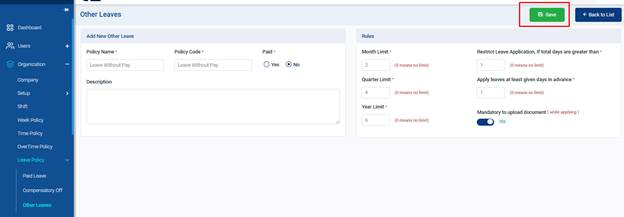
Step 4: Review all entered details, then click Save to create the LWP leave under Other Leave.
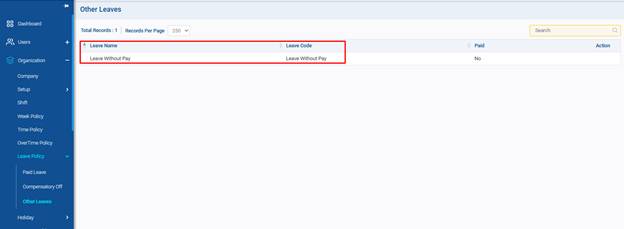
Step5: The LWP leave will now be visible in the Other Leave list on the screen.
Once leave is created, HR can allot the same to employees.
Was this article helpful?
That’s Great!
Thank you for your feedback
Sorry! We couldn't be helpful
Thank you for your feedback
Feedback sent
We appreciate your effort and will try to fix the article